TVU Go · Configuration Guide
TVU Go to OBS
Stream live from your phone to OBS on your computer — add graphics, switch scenes, and go live to YouTube, Twitch, or any platform you want.
Which computer are you using?
What You're Setting Up
The Big Picture
Think of this like a relay race. Your phone records your video and passes it to a TVU cloud server — which then sends it through the internet to OBS on your computer. OBS is where you add graphics, text, and switch camera views before everything goes live to YouTube, Twitch, or any platform you choose.
What You'll Need to Collect
Before you start, you'll need a few numbers. Think of them like a home address and a suite number that tell your equipment where to send and receive things. Here's what they look like — you'll replace these examples with your real values as you go through the guide.
Open Your Firewall
Allow OBS Through Your Firewall
Your computer has a built-in security system called a Firewall. It controls which apps are allowed to accept connections. We need to tell it that OBS is safe to receive your video stream.
- 1Click the Apple menu (🍎) in the very top-left corner of your screen
- 2Choose System Settings
- 3In the left panel, find and click Privacy & Security
- 4Scroll down until you see Firewall — click it
- 5If Firewall shows Off — great, you're done! Move to the next step
- 6If it shows On — click Options…
- 7Look for OBS in the list. If it's there, make sure it says Allow incoming connections
- 8If OBS isn't listed — click the + button at the bottom, go to your Applications folder, and add OBS
Tell Your Router
Set Up Port Forwarding on Your Router
Your router is like the front door of your home or office network. When your phone sends video from the internet, it knocks on your router's door. The router needs instructions to send that video to OBS on your specific computer — this is called port forwarding.
Create a Stream Password
Pick a Password for Your Stream
Your video stream travels through the internet. Without a password, anyone who figures out your connection address could tap in and watch your private feed. We set a passphrase — basically a password — so only OBS can receive it.
Where the Password Goes in OBS
When you set up OBS in the next section, you'll paste a connection address into it. Your password gets added to the very end of that address. Here's what the full address looks like:
Set Up OBS
Add a Video Input in OBS
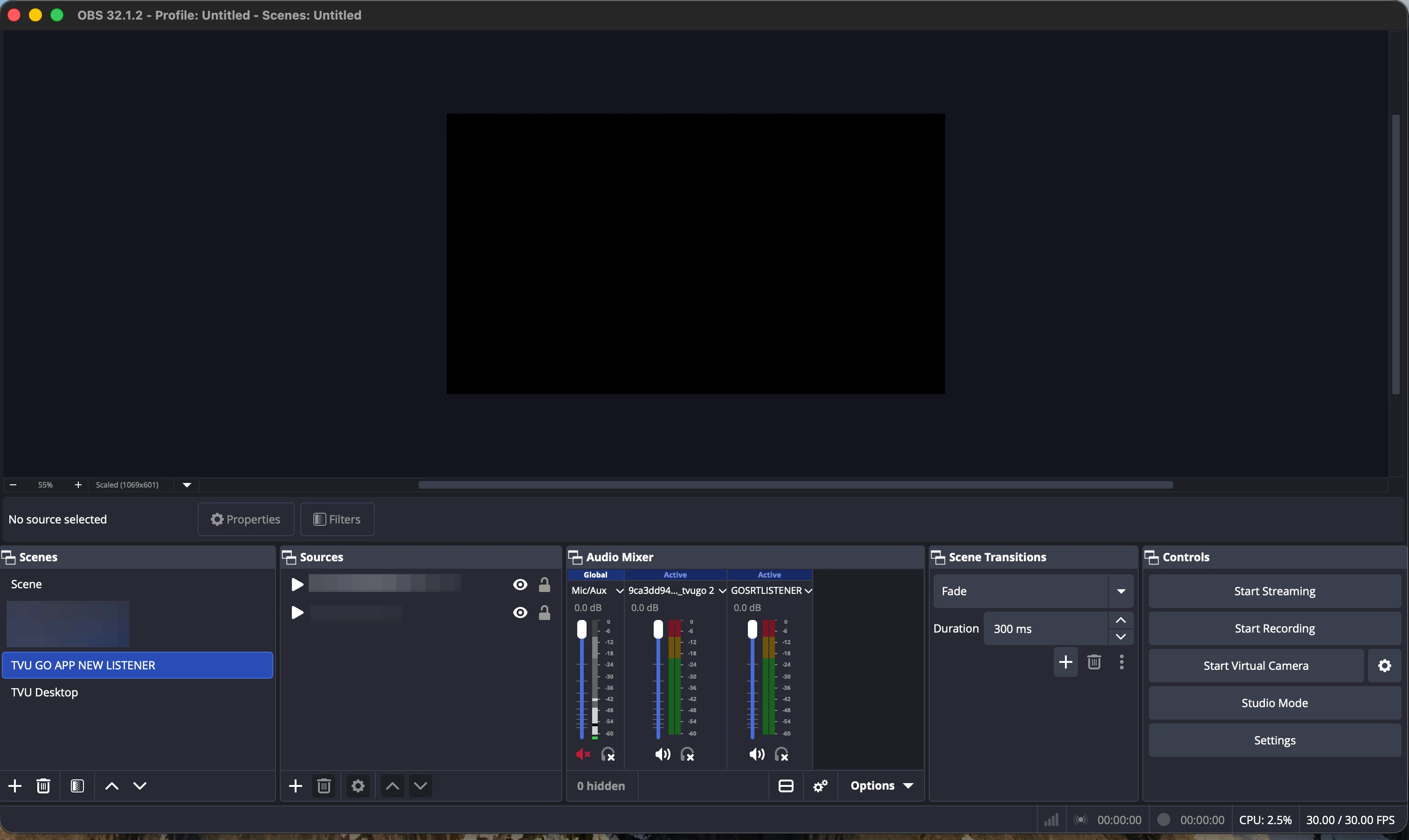
OBS (Open Broadcaster Software) is the app on your computer that receives your stream, lets you add graphics, and then broadcasts everything to YouTube or any other platform. First, we tell OBS to expect a live video feed coming in from the network.
- 1Open OBS on your computer
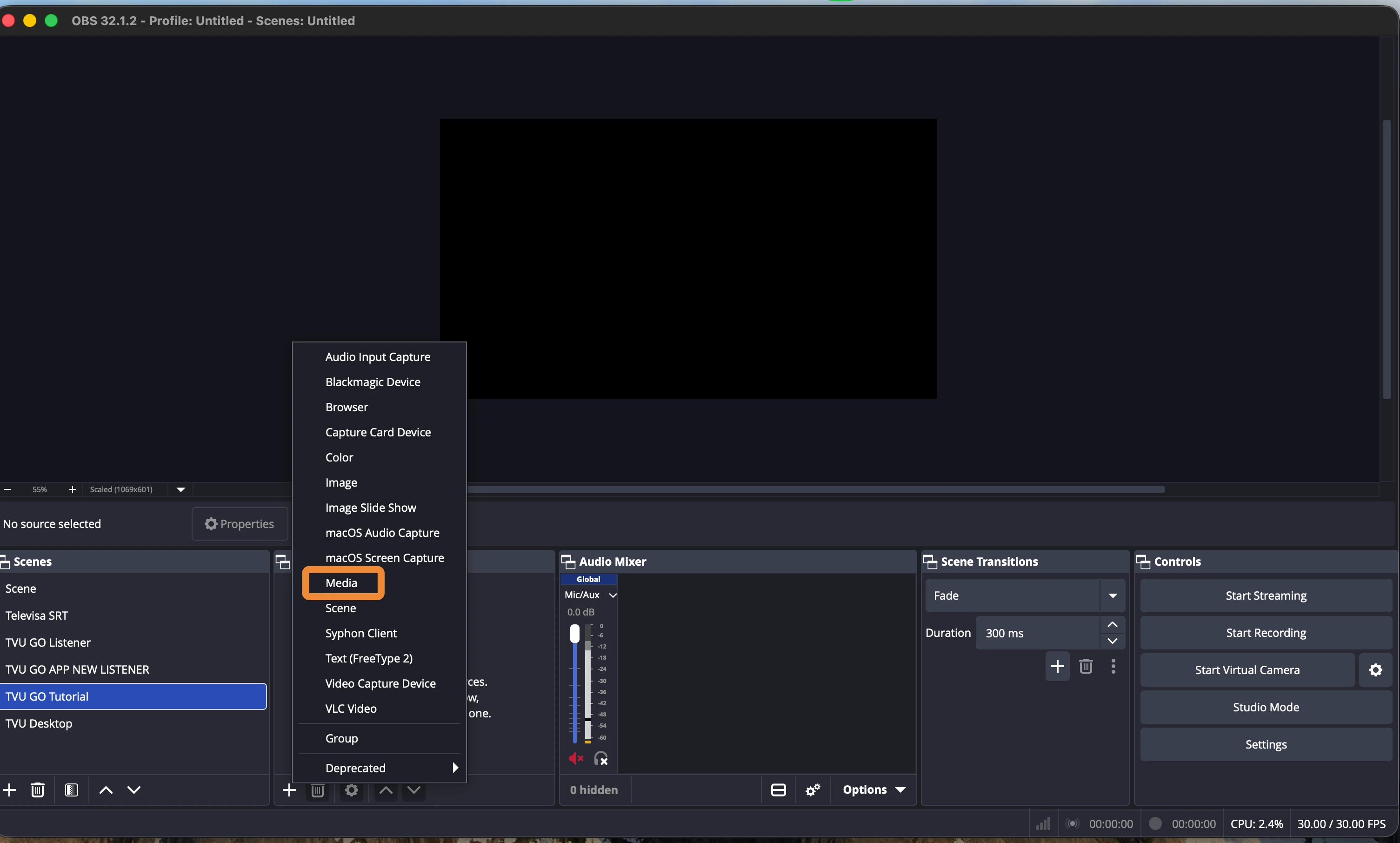
- 2Look at the bottom of the screen for a panel called Sources
- 3Click the + (plus) button
- 4Choose Media Source from the menu
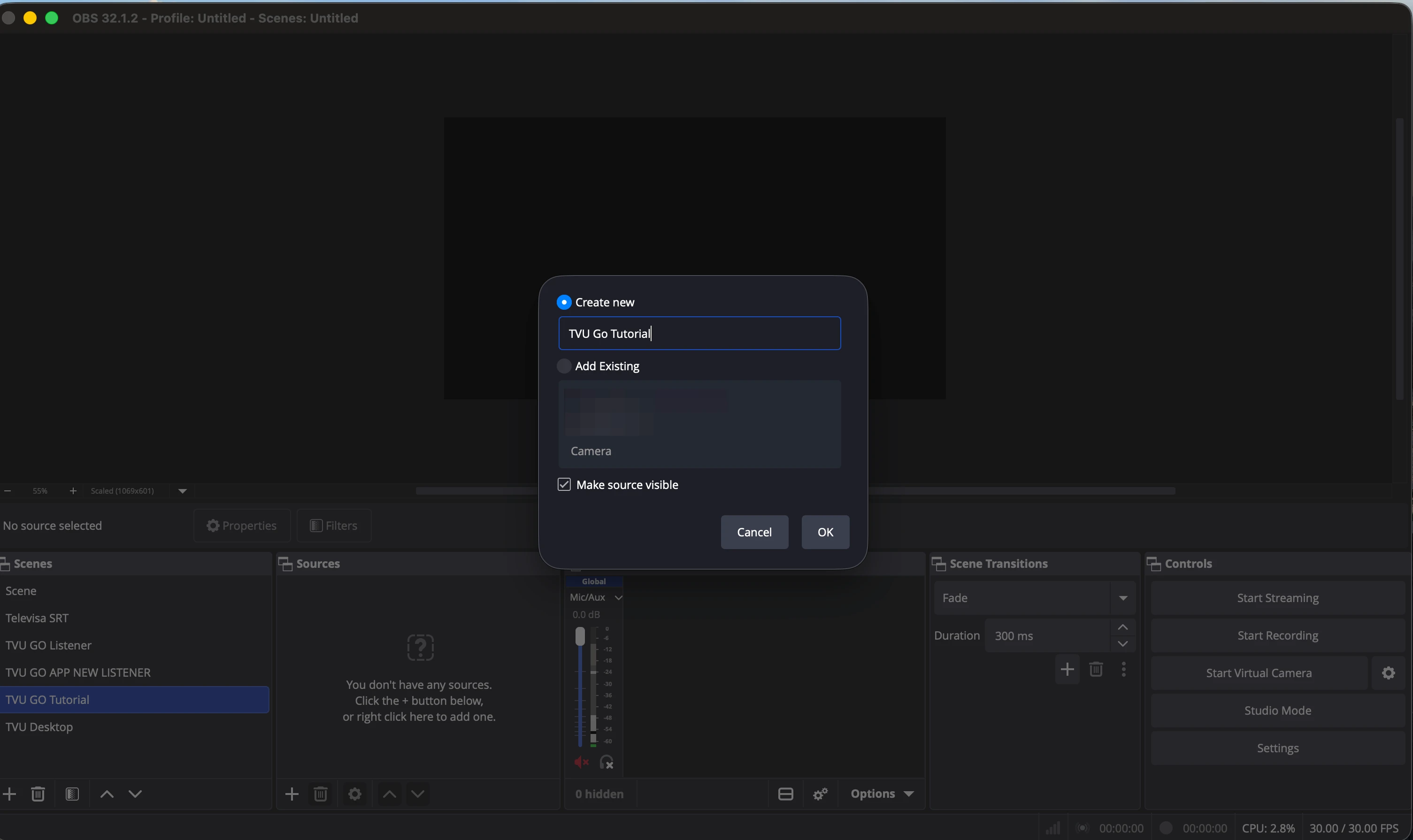
- 5Give it any name you like — for example, TVU Go Feed — then click OK
- 6A settings window will open. Find the checkbox labeled Local File and make sure it is UNCHECKED (turned off)
- 7Keep this settings window open — you'll fill in the details in the next step
Enter the Connection Details in OBS
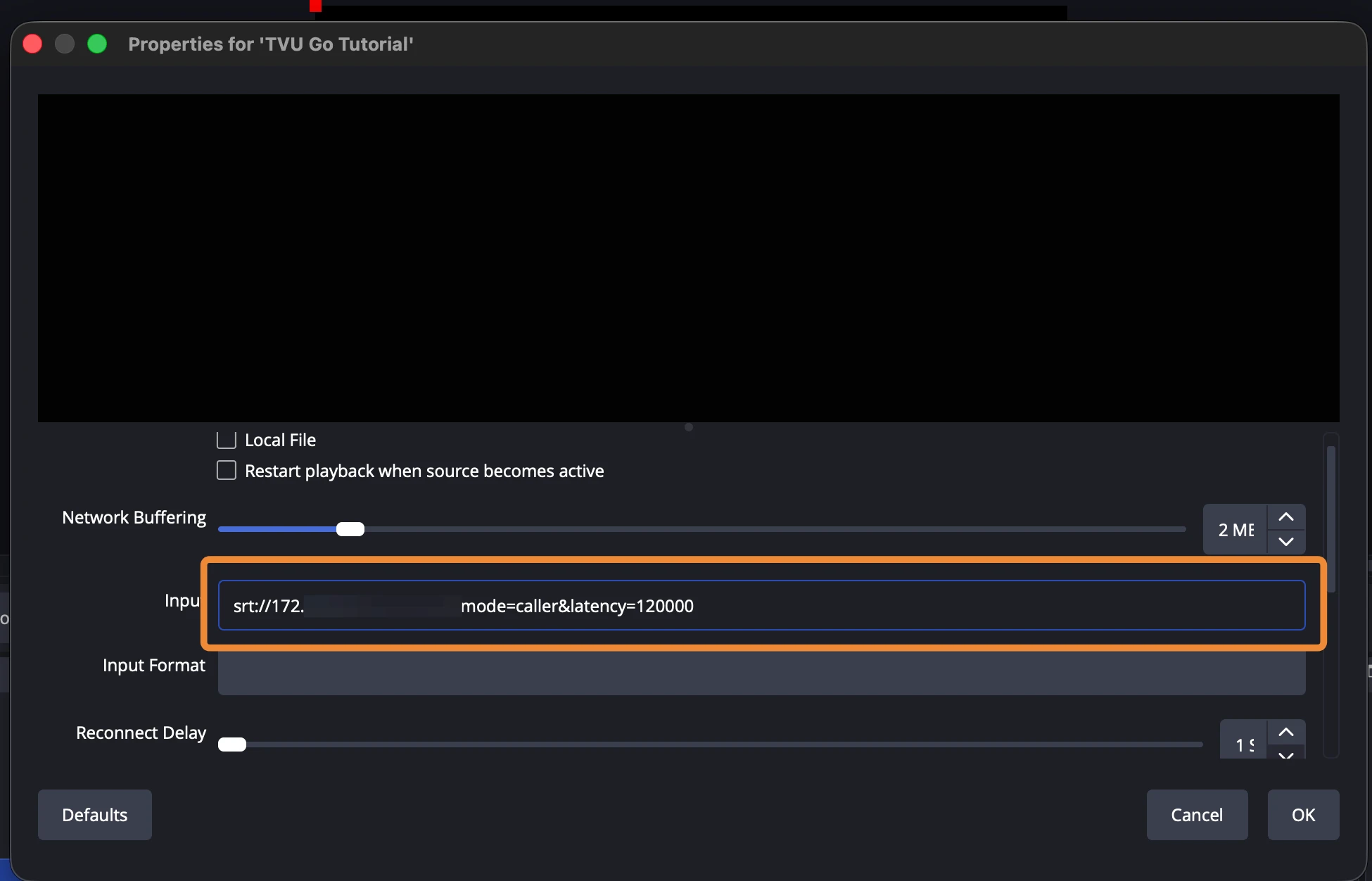
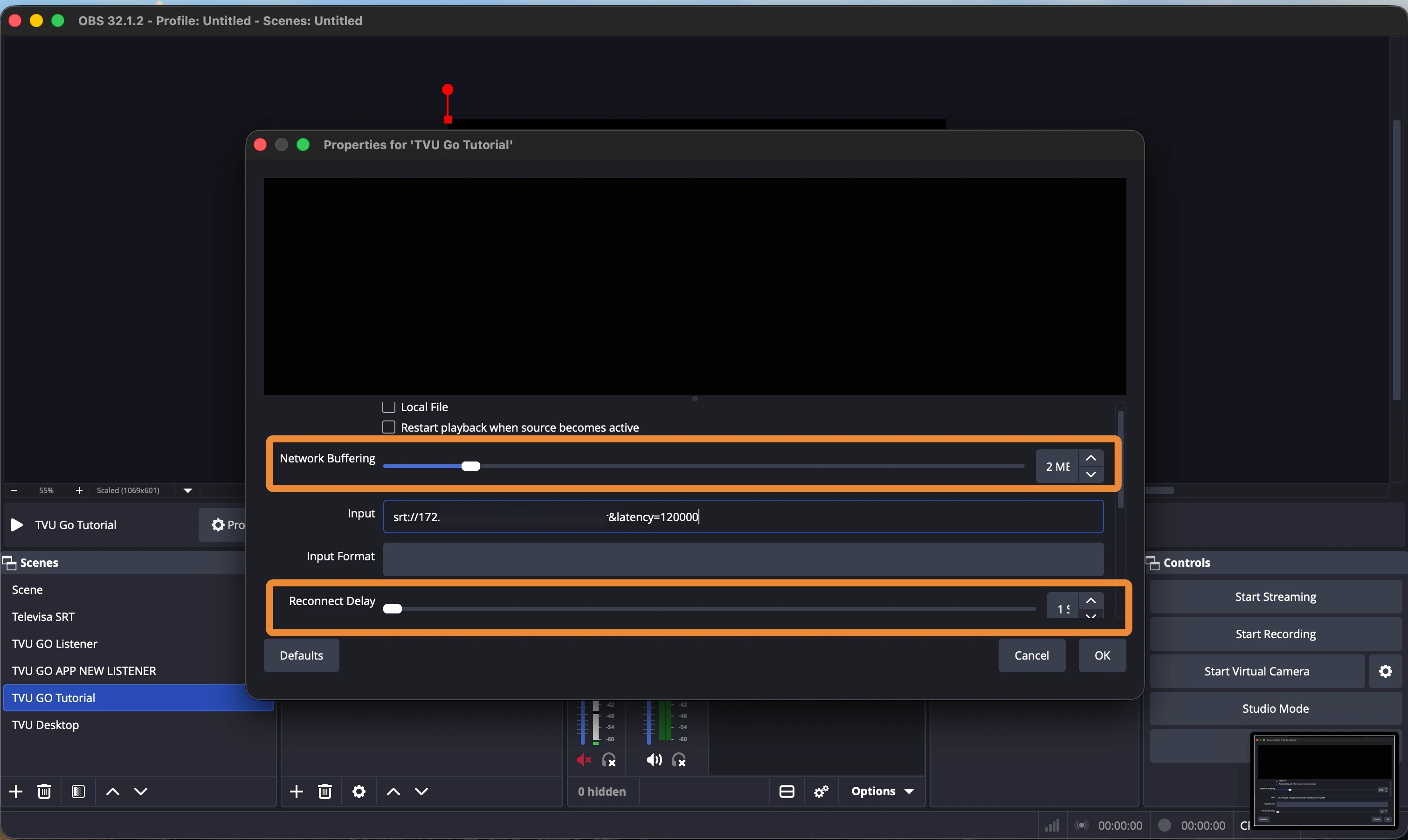
Still in the same settings window — fill in the values below. You don't need to understand every part of the address. Just make sure the passphrase at the end matches the one you chose in Step 5.
Set Up TVU Go
Add OBS as a Destination in TVU Go
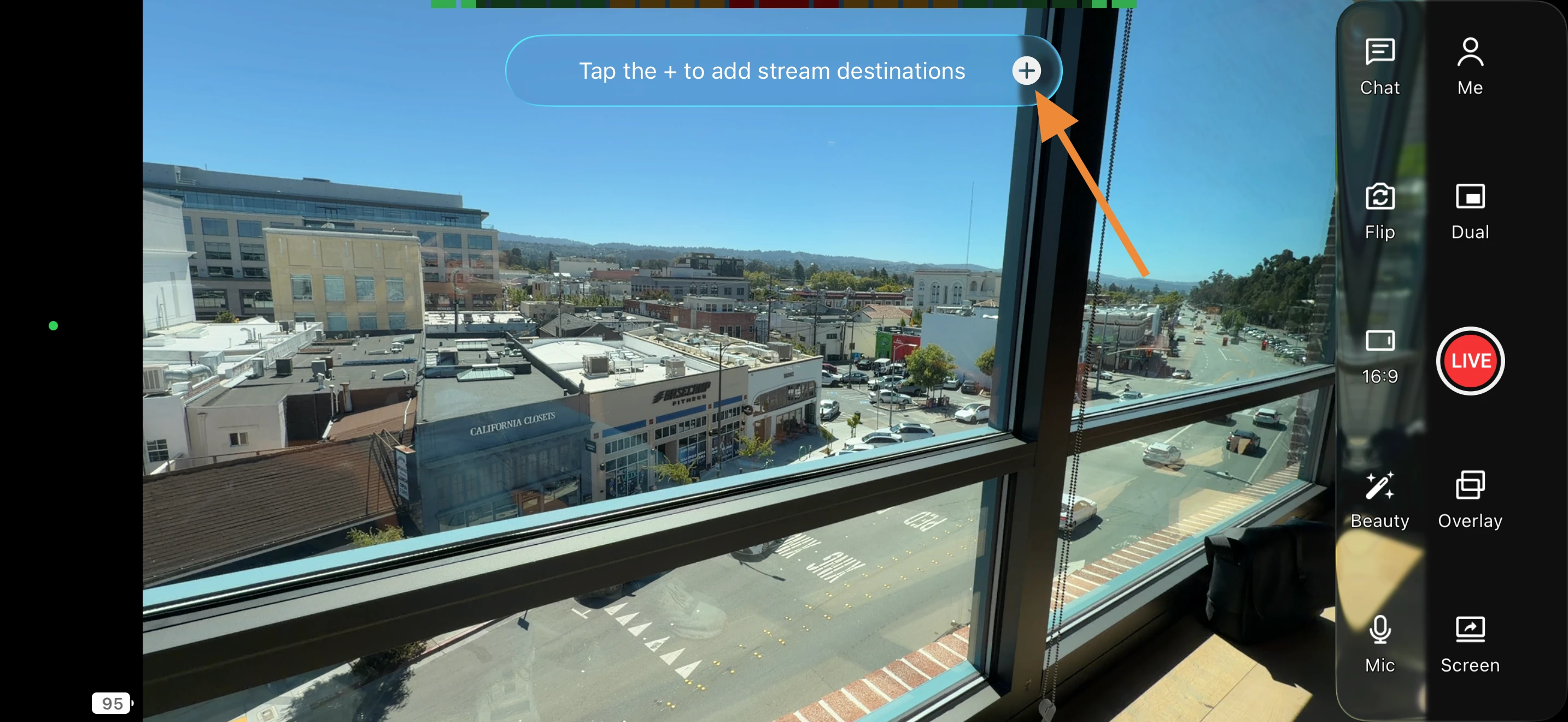
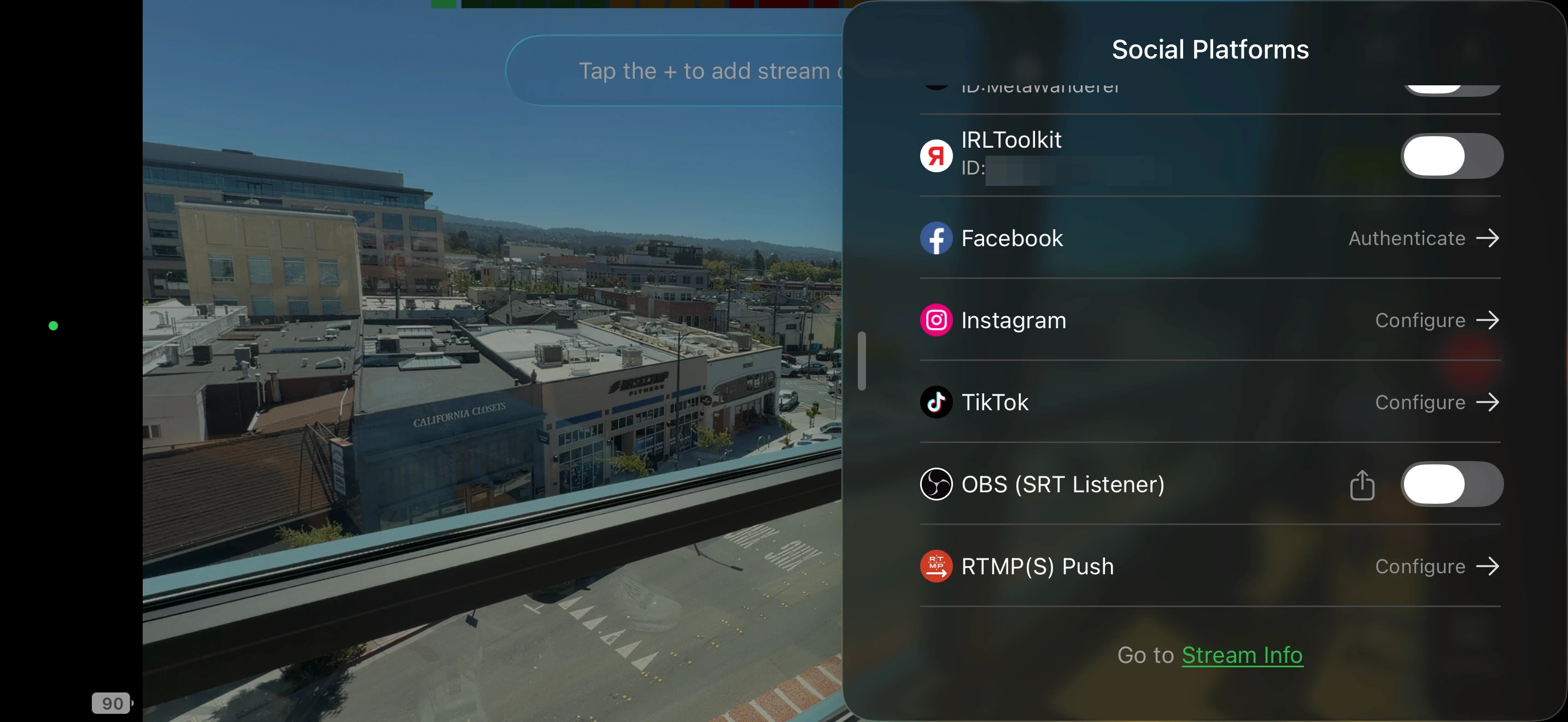
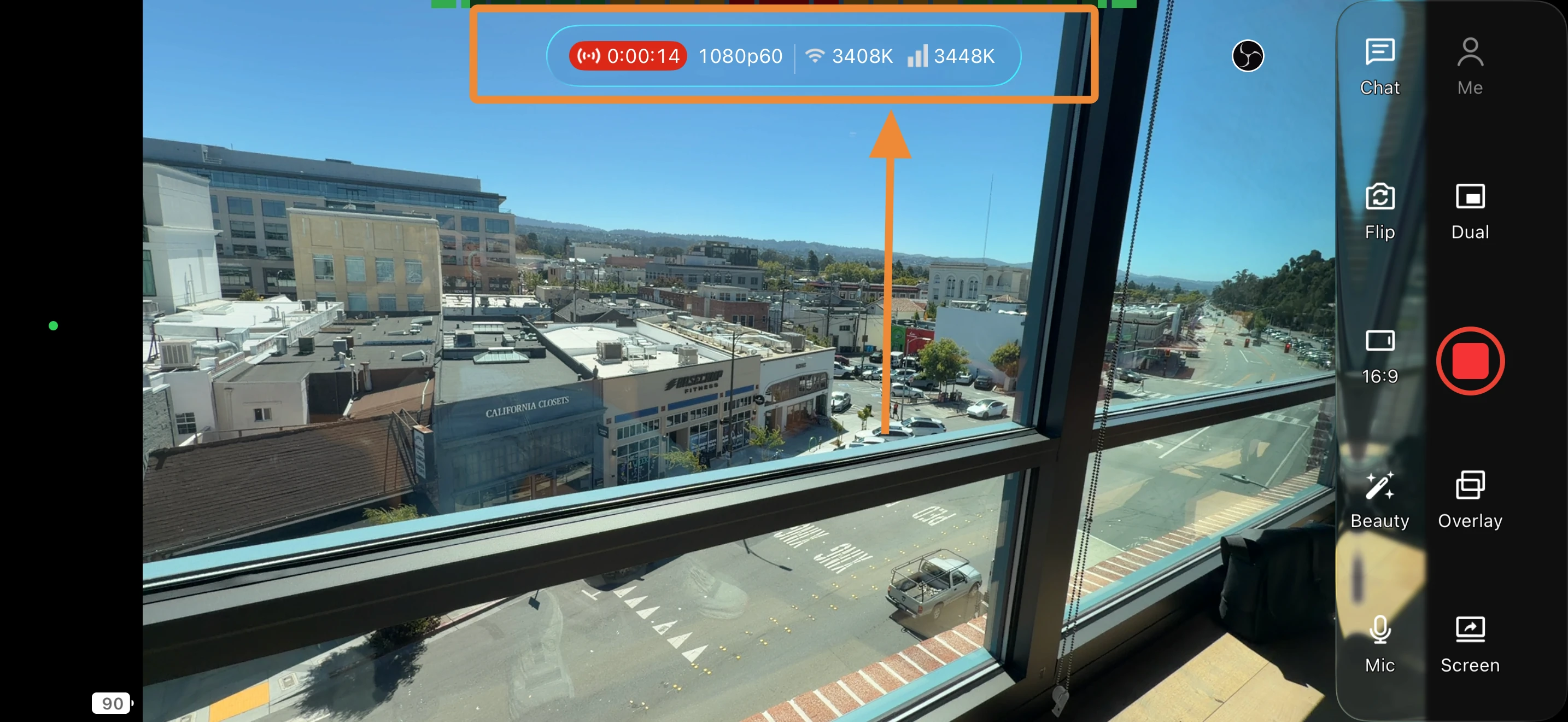
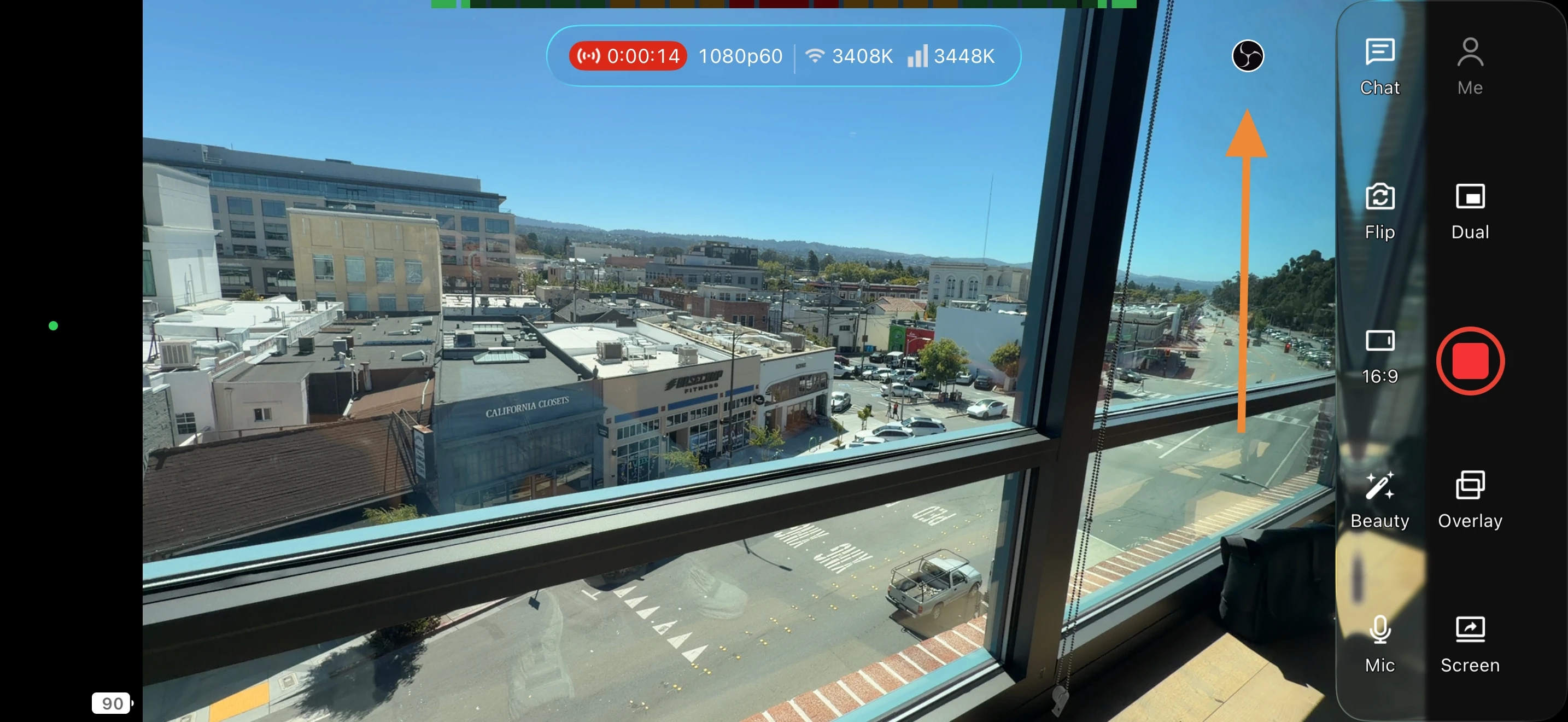
Now we tell the TVU Go app on your phone where to send the video — your OBS computer. Open TVU Go, tap the + icon on the main screen to add a streaming destination, scroll down, and tap OBS.
Enter Your Connection Details in TVU Go
On the OBS destination settings screen inside the app, enter these two things, then tap Save.
Turn On OBS and Go Live
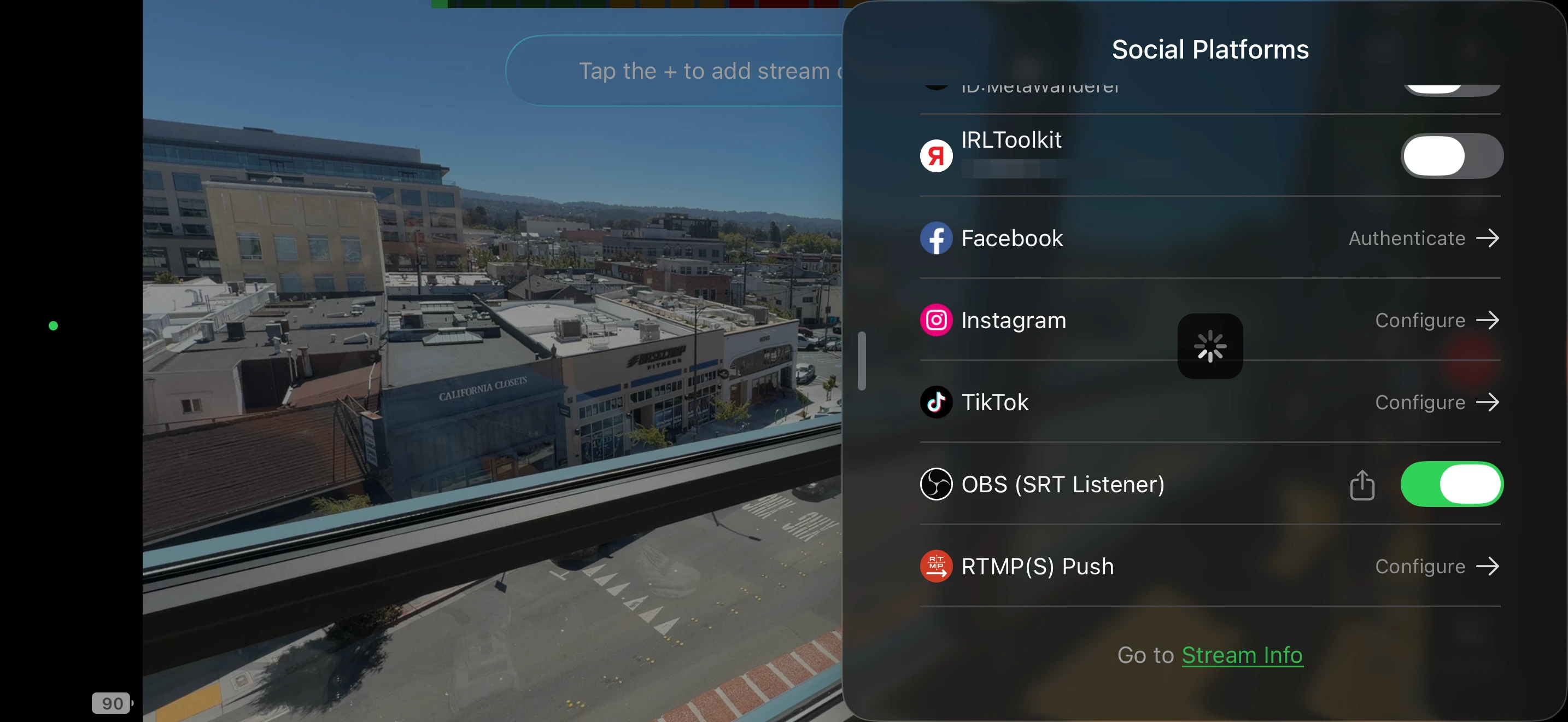
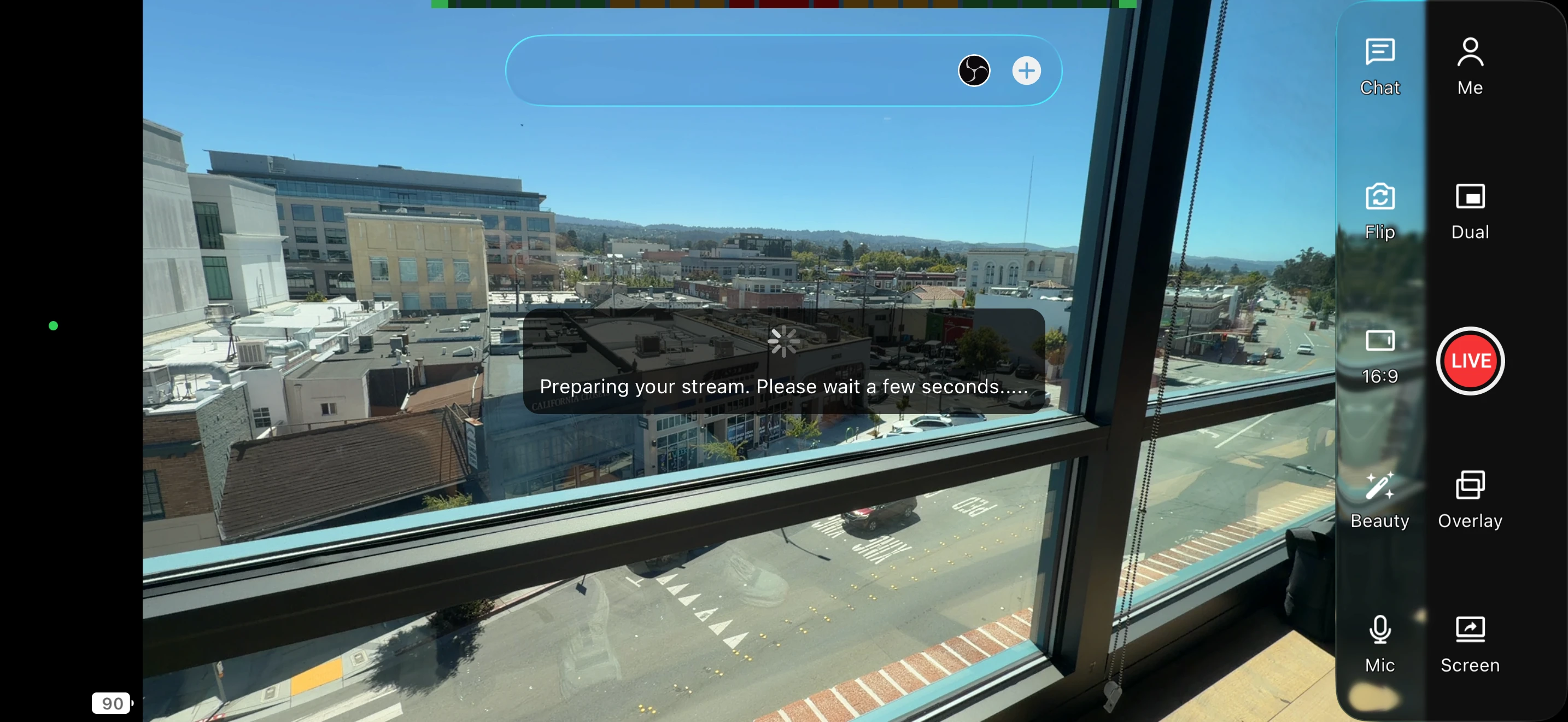
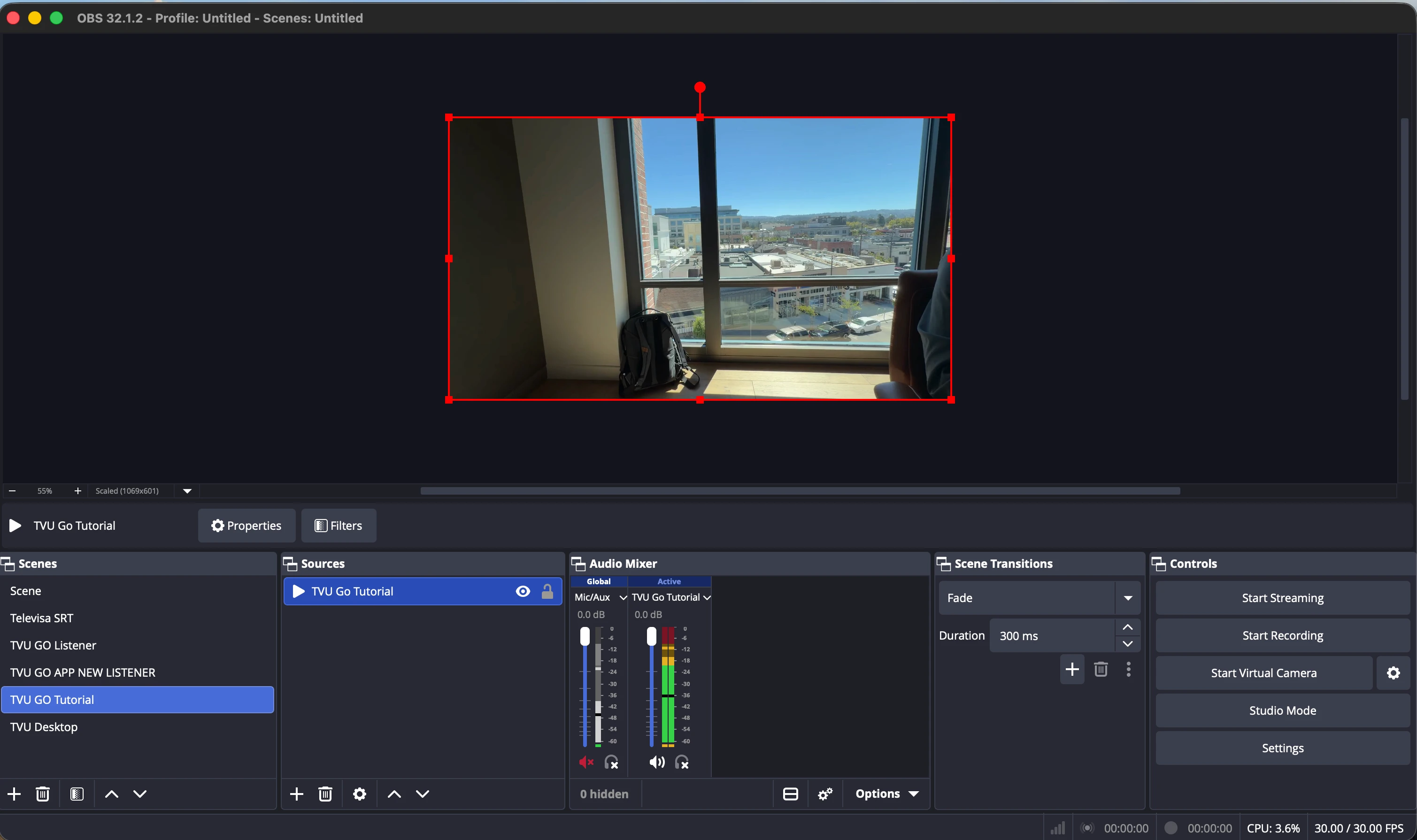
Back on the TVU Go home screen, tap the + icon to open your destination list. Toggle OBS to ON, then tap the LIVE button. TVU Go will connect to the TVU cloud and route your video to OBS on your computer. Once OBS shows your camera feed, add your graphics and overlays — then go live to any platform you want.
Try It Out First
Check That OBS Is Listening
Before testing with your phone, let's make sure OBS is ready and waiting to receive your stream. We'll run a quick check using your computer's built-in command tool. Just copy and paste one line — you don't need to understand what it means.
- 1Press Command (⌘) + Space on your keyboard — this opens Spotlight Search
- 2Type Terminal and press Enter to open the Terminal app
- 3Copy the command below and paste it into the Terminal window, then press Enter
Send a Test Signal (Optional but Recommended)
This step uses a free tool called ffmpeg to send a colorful test video to OBS — no phone needed. If OBS shows the test picture, everything is connected correctly. This saves a lot of guesswork later, and you can skip it if you're comfortable testing with your phone directly.
- 1Open Terminal (see the previous step for how to find it)
- 2Run the install commands below — Homebrew is a free tool manager for Mac, ffmpeg is the test video tool
- 3Once installed, run the third command to send a test signal to OBS
- 4Watch OBS on your screen — a colorful test pattern should appear within a few seconds
- 5Press Control + C in Terminal to stop the test when you're done
Something's Not Working?
Common Problems and How to Fix Them
If something isn't working, find the symptom that matches what you're seeing below and follow the fix.
Copyright 2025 TVU Networks - All rights reserved.