TVU Go · Configuration Guide
How to Get the $30,000 Streaming Look without Spending $30,000
Connecting your Professional Camera to IRL Stream with Mobile App TVU Go

If you have a phone and a professional camera, you already have most of a pro IRL streaming rig. With the TVU Go app on iPhone or Android, your phone becomes the encoder and the camera becomes the eye. You get cinema-quality video while you stay mobile.
Phone cameras have come a long way, but a dedicated camera still wins on sensor size, lenses, low light and depth of field. The catch has always been getting that picture online without a broadcast-grade backpack like the TVU One. A handful of affordable adapters, cables and power accessories now solve that. This guide covers the exact kit, how to wire it, and how to go live.
What you need
First, you’ll need to choose which phone you have as the setup differs between iPhone and Android and will require different components to put it all together.
iPhone add-ons
iPhone Setup:
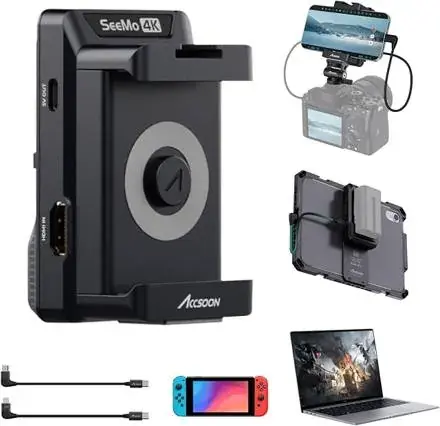
On the iPhone with the Seemo adapter, you can use a Sony ZVE, a Sony FX3 or any other professional camera you have. You will need an Accsoon Seemo, a USB-C Media Hub, Wall LED charger for Seemo batteries, and everything listed below in the “Core Gear” list.
| Item | Qty | What it does | |
|---|---|---|---|
| Accsoon SeeMo | 1 | Brings the camera's HDMI feed into the iPhone, so TVU Go streams your camera's picture | |
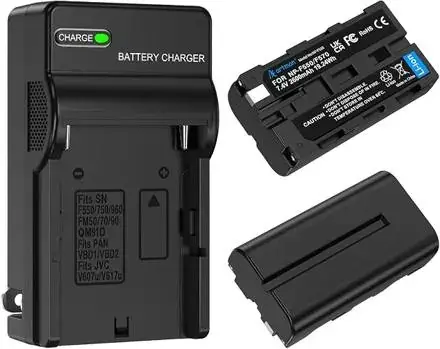
| Wall LED Charger for SeeMo batteries | 1 | Charges the SeeMo's spare batteries between shoots |
Android add-on
Android Setup
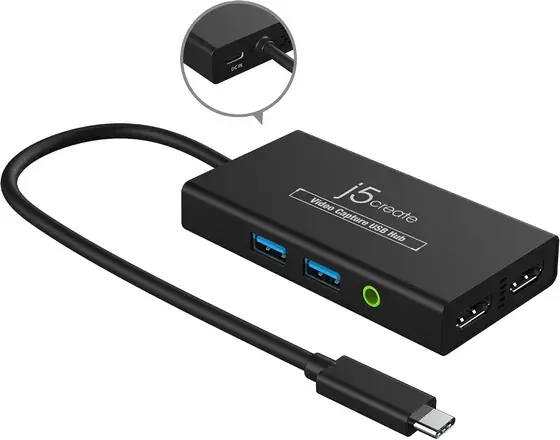
With Android, you can use any web-enabled camera via UVC natively. For best results, make sure you have a capture card, we recommend the J5 Create Card, linked below. This is where the two setups differ, but both setups require the core gear listed below.
| Item | Qty | What it does | |
|---|---|---|---|
| j5create Video Capture USB Hub | 1 | Brings HDMI into the Android phone over USB-C, with spare ports for power and a modem | |
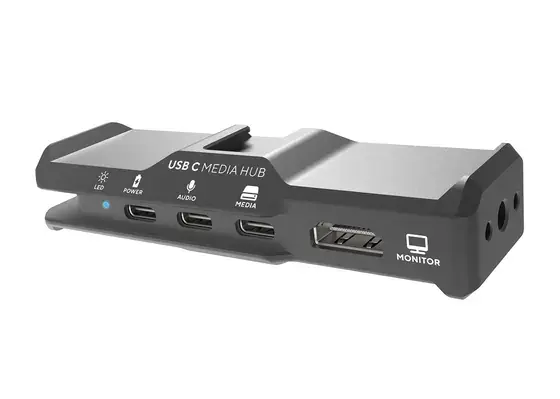
| Kondor Blue USB-C Media Hub | 1 | Mounts on the Android phone and splits its one USB-C port for power, a modem and other accessories |
Core gear (both kits)
| Item | Qty | What it does | |
|---|---|---|---|
| Black Shark Phone Cooler | 1 | Clips to the phone to keep it cool through long sessions | |
| SmallRig LED Video Light | 1 | On-camera fill light for interviews and stand-ups | |
| Anker Prime Power Bank, 27,650mAh 250W | 1 | Keeps phone and camera topped up away from the wall | |
| USB-C Battery Adapter Cable for Camera | 1 | Runs the camera on USB-C power instead of its internal battery | |
| Kondor Blue Coiled Micro HDMI to Full HDMI | 1 | Camera micro HDMI out to the SeeMo or capture hub (12–24 in coiled) | |
| Anker USB-C Cable, 6 ft | 2 | Short power runs around the rig | |
| Anker USB-C Cable, 10 ft | 1 | The long run to a power bank on your belt or bag |
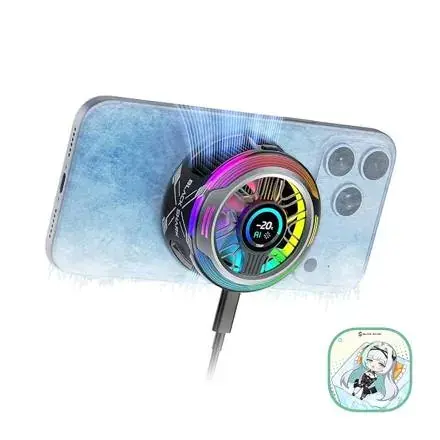
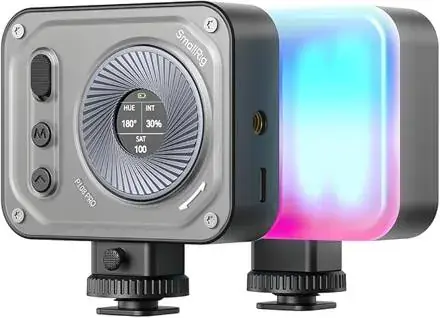
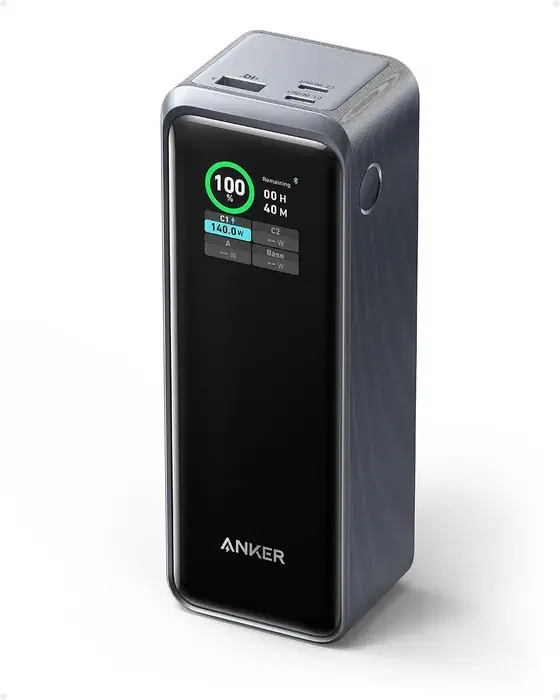
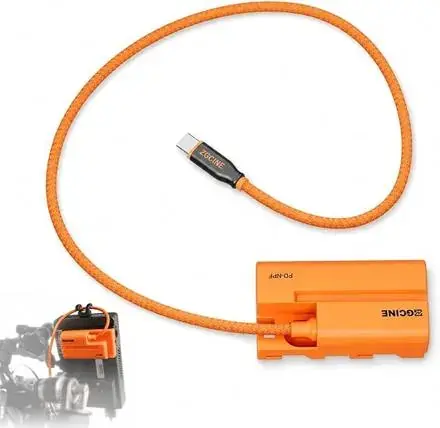
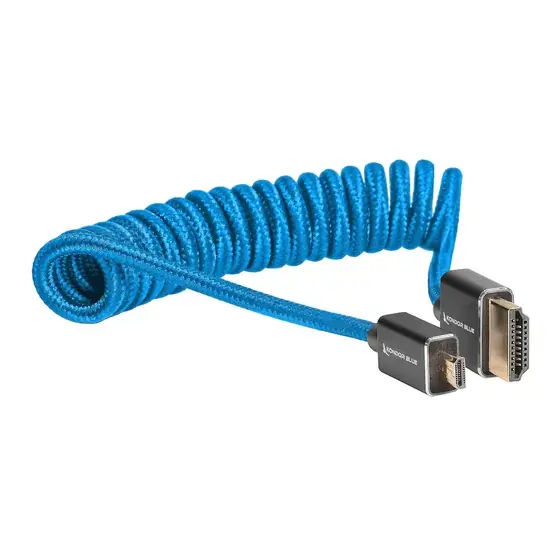
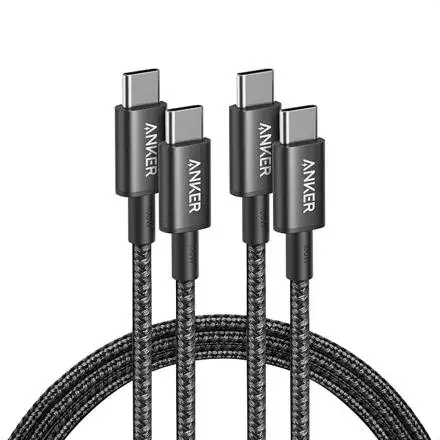
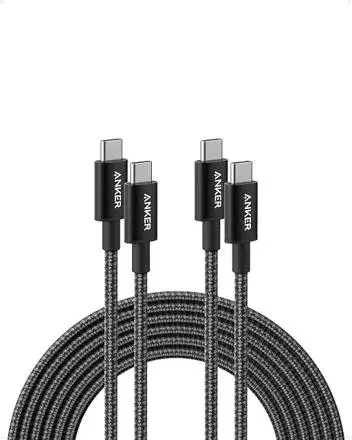
To hold it all together, the reference build uses a SmallRig cage and top handle on the camera. Please note, you will need to select the one that fits the camera you already own.
How to build the rig (iPhone)
How to build an iPhone rig:
- 01Cage the camera. Put your camera in a cage and add a top handle. This gives you mounting points for the phone, light and adapter, and a comfortable grip for walking shots.
- 02Mount the phone. iPhone: attach the Accsoon SeeMo to the phone, with its battery behind it, and mount the Kondor Blue hub.
- 03Run the video cable. Connect the Kondor Blue coiled cable from the camera's micro HDMI out to the SeeMo (iPhone). The coil keeps slack off the rig without snagging.
- 04Power the camera from USB-C. Swap the internal battery for the USB-C battery adapter cable, so the camera runs off the power bank instead of dying mid-stream.
- 05Wire the power. Use the two 6 ft cables for short runs around the rig and the 10 ft cable to reach the Anker power bank on your belt or in your bag.
- 06Add cooling and light. Clip the Black Shark cooler to the back of the phone, and mount the SmallRig light for fill on faces.
- 07Check the feed. Open TVU Go. Your camera's picture should appear on the phone screen. If it doesn't, check the HDMI connection and that the camera's HDMI output is on.
Going live with TVU Go on iPhone
- 01Download TVU Go for iPhone and sign in.
- 02Activate “Nerd Mode”: Open up the settings in TVU Go and click “Me,” scroll down and make sure “Nerd Mode” is activated. Nerd Mode is where you’ll find the more advanced features from TVU Go.
- 03Confirm the camera feed in Nerd Mode, toggle on “SeeMo Device.” Put the phone into the phone holder on the Seemo Device.
- 04Plug in the HDMI cable from the Seemo Device into the camera itself.
- 05Plug the USB-C cable from the phone into the Seemo Device, “video out.”
- 06Make sure Seemo Device is on, if you see a charger symbol it should be connected.
- 07Power on camera
- 08Bond your stream! The USB hub's spare port can take a modem connection alongside power, which helps in crowded areas where one cell signal struggles. Don’t have a hotspot? Go back into settings → me → scroll down and toggle on “Connection Boost” and add a “Helper Phone” by following the steps on the screen.
How to build the rig (Android)
How to build an Android rig:
- 01Cage the camera. Put your camera in a cage and add a top handle. This gives you mounting points for the phone, light and adapter, and a comfortable grip for walking shots.
- 02Mount the phone. Plug the j5create capture hub into the phone's USB-C port.
- 03Run the video cable. Connect the Kondor Blue coiled cable from the camera's micro HDMI out to the j5create hub. The coil keeps slack off the rig without snagging.
- 04Power the camera from USB-C. Swap the internal battery for the USB-C battery adapter cable, so the camera runs off the power bank instead of dying mid-stream.
- 05Wire the power. Use the two 6 ft cables for short runs around the rig and the 10 ft cable to reach the Anker power bank on your belt or in your bag.
- 06Add cooling and light. Clip the Black Shark cooler to the back of the phone, and mount the SmallRig light for fill on faces.
- 07Check the feed. Open TVU Go. Your camera's picture should appear on the phone screen. If it doesn't, check the HDMI connection and that the camera's HDMI output is on.
Going live with TVU Go on Android
Once the camera feed shows in TVU Go, you're one tap from live.
- 01Download TVU Go for Android and sign in.
- 02Activate “Nerd Mode”: Open up the settings in TVU Go and click “Me,” scroll down and make sure “Nerd Mode” is activated. Nerd Mode is where you’ll find the more advanced features from TVU Go.
- 03Confirm the camera feed in Nerd Mode, toggle on “UVC Camera”. Plug in your camera and follow the steps on screen. Make sure to select “USB live streaming,” and enable permissions.
- 04Set up a starting screen. TVU Go can show a “Stream Starting Soon” screen so viewers aren't staring at a blank feed while you get ready.
- 05Set a backup clip. In the backup clip settings, choose a “connection lost” clip. If your signal drops on the street, viewers see your clip instead of a frozen frame.
- 06Power on camera
- 07Bond your stream! The USB hub's spare port can take a modem connection alongside power, which helps in crowded areas where one cell signal struggles. Don’t have a hotspot? Go back into settings → me → scroll down and toggle on “Connection Boost” and add a “Helper Phone” by following the steps on the screen.
Tips from the field
- 01Set up a starting screen*. TVU Go can show a “Stream Starting Soon” screen so viewers aren't staring at a blank feed while you get ready.
- 02Set a backup clip*. In the backup clip settings, choose a “connection lost” clip. If your signal drops on the street, viewers see your clip instead of a frozen frame.
- 03Heat is the enemy. Encoding video for hours makes phones throttle or shut down. Keep the cooler on from the start, not after the phone gets hot.
- 04Carry spare power. Keep charged SeeMo batteries in your bag, and put the big power bank on your belt so the rig stays light in your hands.
- 05Keep cables short and tidy. Coiled HDMI and short USB runs mean nothing snags when you move through a crowd.
- 06Light faces, not scenes. A small on-camera light makes a big difference for interviews and night stand-ups.
See it in action
Creators are already streaming with this setup. Watch these reels for real-world builds:
Start streaming
A pro camera, your phone and a handful of accessories add up to a rig that is broadcast-grade and moves like a phone. Download TVU Go, grab the parts on the rig setup page, and go live.
Have questions while you build? Join the TVU Discord. And when your rig is ready, post it and tag @tvu_networks. We'd love to see what you build.